

Web browser
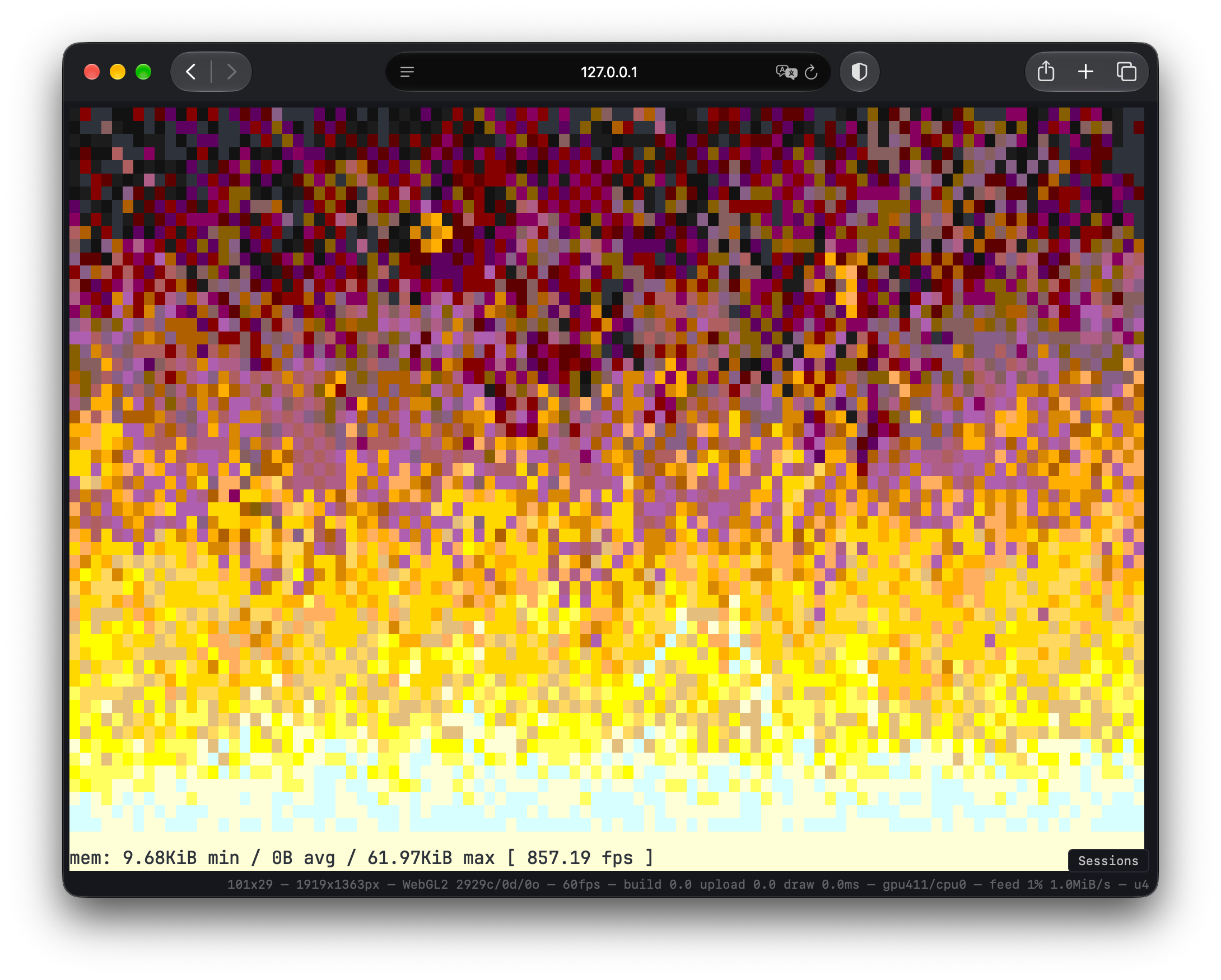
The browser client is the same C++ core as every other client, compiled to WebAssembly. The page itself is thin: it owns the canvas, the frame loop and the window size. Colour, layout, attributes and glyph coverage arrive from Core already resolved, so the browser draws what macOS and Linux draw.
Drawing
Section titled “Drawing”The page draws with WebGL2, using the same instance stream the Metal and Vulkan renderers bind, with the shaders ported to GLSL ES. If the browser refuses WebGL2, the page falls back to a 2D canvas and Core’s CPU raster. Images are composited on the CPU path. The build stages JetBrains Mono and Symbols Nerd Font Mono beside the page, so text uses the same faces as the desktop apps; without them the page falls back to the GNU Unifont bitmap face built into Core.
The CPU raster is the reference for the GPU path: Scripts/check-web-gpu-parity.sh draws the same frames both ways in a browser and compares them pixel by pixel; a pixel counts as different only if no pixel within one position of it matches, which tolerates rasterisers placing an edge a pixel apart but not a wrong glyph.
See Performance for the benchmark tools and measurement requirements.
Connecting to a host
Section titled “Connecting to a host”The page is a full Sync client: the protocol’s client side is compiled into the WebAssembly module, so the browser speaks it directly. It needs a byte pipe to the host, and a page cannot open a Unix socket, so the host is reached over a WebSocket:
ubiquitty-hostruns and listens on its local socket.Scripts/web-proxy.pyaccepts a WebSocket on127.0.0.1and forwards bytes to and from the host’s socket without reading them.- The page connects with a capability token the host issued.
The proxy is a local development bridge: the host does not accept WebSockets itself, and the proxy listens only on the loopback interface. The host checks the token and attachment consent; the proxy does not grant access. Do not expose this unauthenticated, unencrypted bridge to a network.
A page opened with ?attach=ws://127.0.0.1:<port>&token=<token> attaches on load; &workspace=<name> attaches to the session with that name or creates it. A token in a URL can appear in browser history and server logs. The existing-session example below keeps it out of the URL and selects a numeric session ID explicitly.
Named sessions persist when the tab closes. Whether unnamed sessions persist is a per-host setting on the page, Keep unnamed sessions, on by default. A page can also embed the client and call window.ubiquitty.connect({ url, token, sessionID, workspaceName }).
Without an attach URL the page is a local terminal fed from JavaScript, with nothing behind it.
What works
Section titled “What works”- Sessions on a host: attach, reattach after a reload, named sessions, the host’s session list.
- Text, colour, sized and proportional text (OSC 66), DEC double size, inline images, the command palette.
- A
config.tomlserved beside the page configures it; the page passes the bytes to Core.
What does not
Section titled “What does not”- No QUIC: a browser has no UDP socket API for it.
- No rich text blocks.
- No consent prompt; the page’s permission policy allows local effects and refuses agent and remote ones.
- The instructions below build and serve the client locally.
Try it
Section titled “Try it”You need Emscripten (emcmake on your PATH) and the host’s build prerequisites.
./Scripts/run-web-demo.shThe script builds the WebAssembly client and an optimised host, starts the host in a private home directory, issues a token, starts the WebSocket proxy, serves the page and opens it. Ctrl-C stops all of it. This is a separate demonstration host, not an attachment to your existing sessions.
Attach to an existing session
Section titled “Attach to an existing session”Use a browser client that matches the running host’s source revision, not just the host binary currently on disk. These steps run on the machine that owns the session, under the account running its host.
1. Serve the browser client
Section titled “1. Serve the browser client”./Scripts/build-web.sh --serveLeave it running and open http://127.0.0.1:8777/ in a fresh private browsing window. Use a new private browsing session, not another tab sharing existing private storage: a saved host pairing can override the first explicit session selection. This command serves the page only; it does not start a host or attach to a session.
The --serve HTTP server listens on all interfaces. To serve the static page only on loopback, use these commands instead:
./Scripts/build-web.shpython3 -m http.server 8777 --bind 127.0.0.1 \ --directory "$(python3 Scripts/build_root.py .)/web-dist"2. Find the session and its socket
Section titled “2. Find the session and its socket”In a shell inside the host session you want to attach to, run:
printf 'Socket: %s\nSession: %s\n' "$UBIQUITTY_SOCKET" "$UBIQUITTY_SESSION"Keep the exact socket path and the number in session:1 (or whichever ID it prints). IDs belong to that running host; identify them again after a host restart. An empty value means this shell is not in a host-managed session. Do not select another socket just because its file is newer.
3. Start the bridge
Section titled “3. Start the bridge”In another terminal, from the source checkout, replace the example path with the socket from step 2:
python3 Scripts/web-proxy.py \ --socket /absolute/path/to/host-example.sock \ --port 8778Leave this running too. The HTTP page uses port 8777; the WebSocket bridge uses port 8778.
4. Issue a short-lived token
Section titled “4. Issue a short-lived token”Use the executable belonging to that host. On macOS, the app bundles it at Ubiquitty.app/Contents/Helpers/ubiquitty-host; a standalone build places it under the build root’s host/ directory.
/absolute/path/to/ubiquitty-host token issue \ --scope observe,drive,control \ --expires 3600 \ --label web-browserIf the host uses a custom UBIQUITTY_HOME, set that same environment variable for this command. Copy the printed token privately. It permits viewing, input and control requests, including the session list; it does not grant session creation or file access.
5. Attach from the browser
Section titled “5. Attach from the browser”Open the page’s developer console and run this, replacing 1 with the numeric session ID from step 2:
await window.ubiquitty.ready;{ const token = window.prompt('Paste the host-issued token'); if (token) { window.ubiquitty.connect({ url: 'ws://127.0.0.1:8778/ws', token, sessionID: 1, }); }}Approve the attachment in an already attached native client when prompted. The browser cannot answer that consent prompt itself. For a headless host, an operator can explicitly add --allow-always when issuing the token to record standing attachment consent.
Check window.ubiquitty.connectionState for attached and window.ubiquitty.sessionID for the selected ID. The page’s Sessions panel lists other sessions on the same host. sessionID: 0 requests a new session and needs the new token scope; it is not an alias for the current session.
Use window.ubiquitty.detach() to disconnect without requesting session termination. Stop the two local servers with Ctrl-C when finished. The token expires after one hour; to revoke it sooner, find its ID with ubiquitty-host token list, then run ubiquitty-host token revoke <id>.
Connection errors
Section titled “Connection errors”- Connection refused: check that the bridge is running on port 8778 and its selected host socket is live.
- Authentication or consent refused: check the token’s expiry, scopes and host control directory, then approve the attachment in a native client.
- Version mismatch: rebuild the browser and host from the same revision. Replacing a host binary does not update an already running daemon; do not terminate sessions just to retry the connection.
Ubiquitty and this site are copyright © 2026 Stanislav Yaglo. Ubiquitty is licensed under the Apache License 2.0.
Apple, iPad, iPadOS, iPhone, Keychain, Mac, macOS, Metal, Swift and Xcode are trademarks of Apple Inc., registered in the U.S. and other countries and regions.